
Configuring your Hytale server allows you to fine-tune gameplay, performance, and world behavior to match your community’s needs.
Hytale separates configuration into two main areas:
-
General Server Settings (server-wide)
-
Per-World Settings (world-specific)
This guide explains where to find each setting and what it controls on CloudNord.
Hytale Authentication Required (Important)
Before your Hytale server can fully start and allow players to join, it must authenticate with Hytale.
When authentication is required, you may see a message indicating that device authentication is needed. This process securely links your server with your Hytale account.
How to Authenticate
Run the following command in the server console:
Once executed:
-
The server will initiate device authentication
-
A verification page will automatically open in your browser
-
Follow the on-screen steps to complete authentication
If you see a “Fix Now” option in the control panel, you can click it to automatically run the command and open the authentication page in a new tab.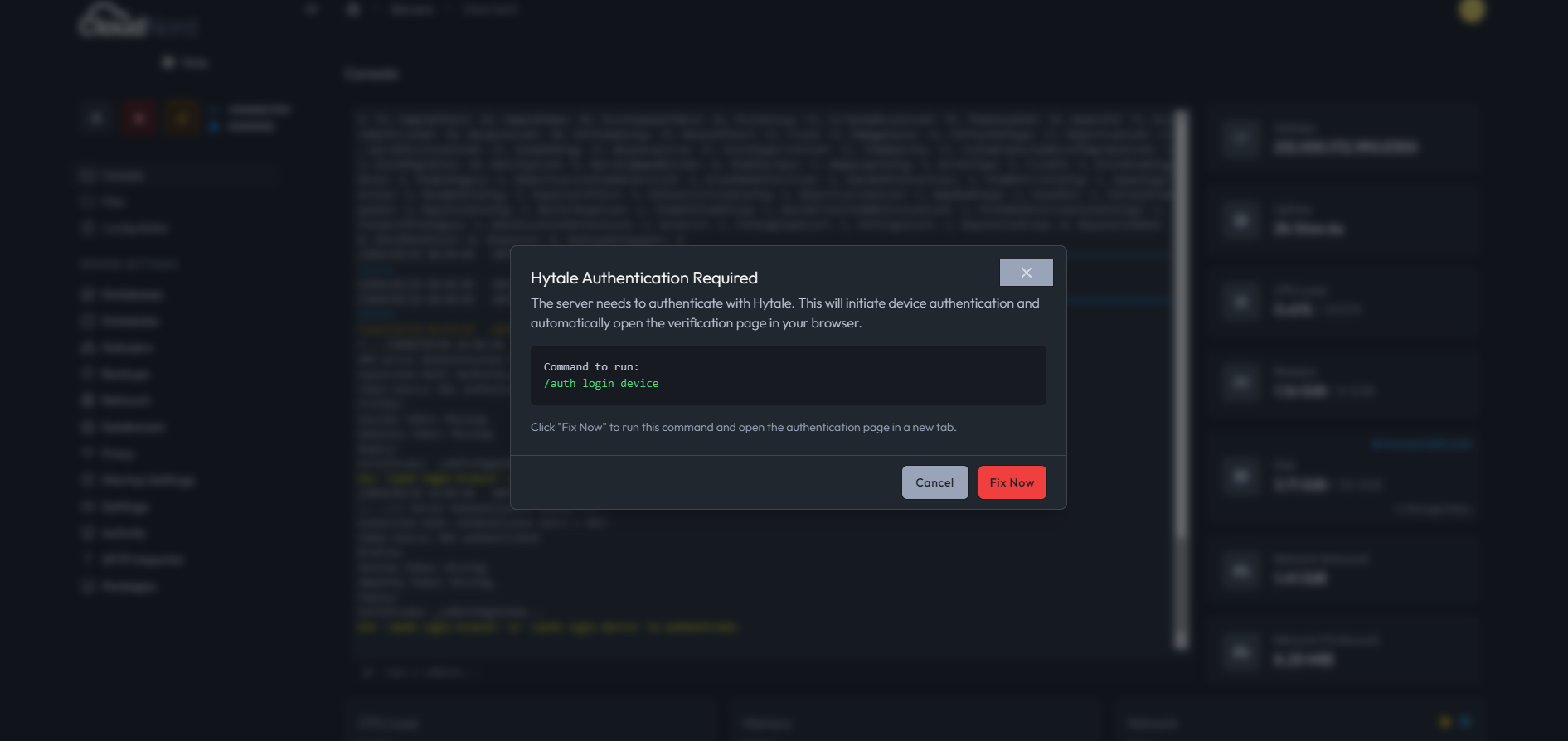
⚠️ Authentication is mandatory. Your server will not function correctly until this step is completed.
1. General Server Settings
The most common server options can be configured directly from the Config tab in your CloudNord control panel.
These settings apply to the entire server or universe.
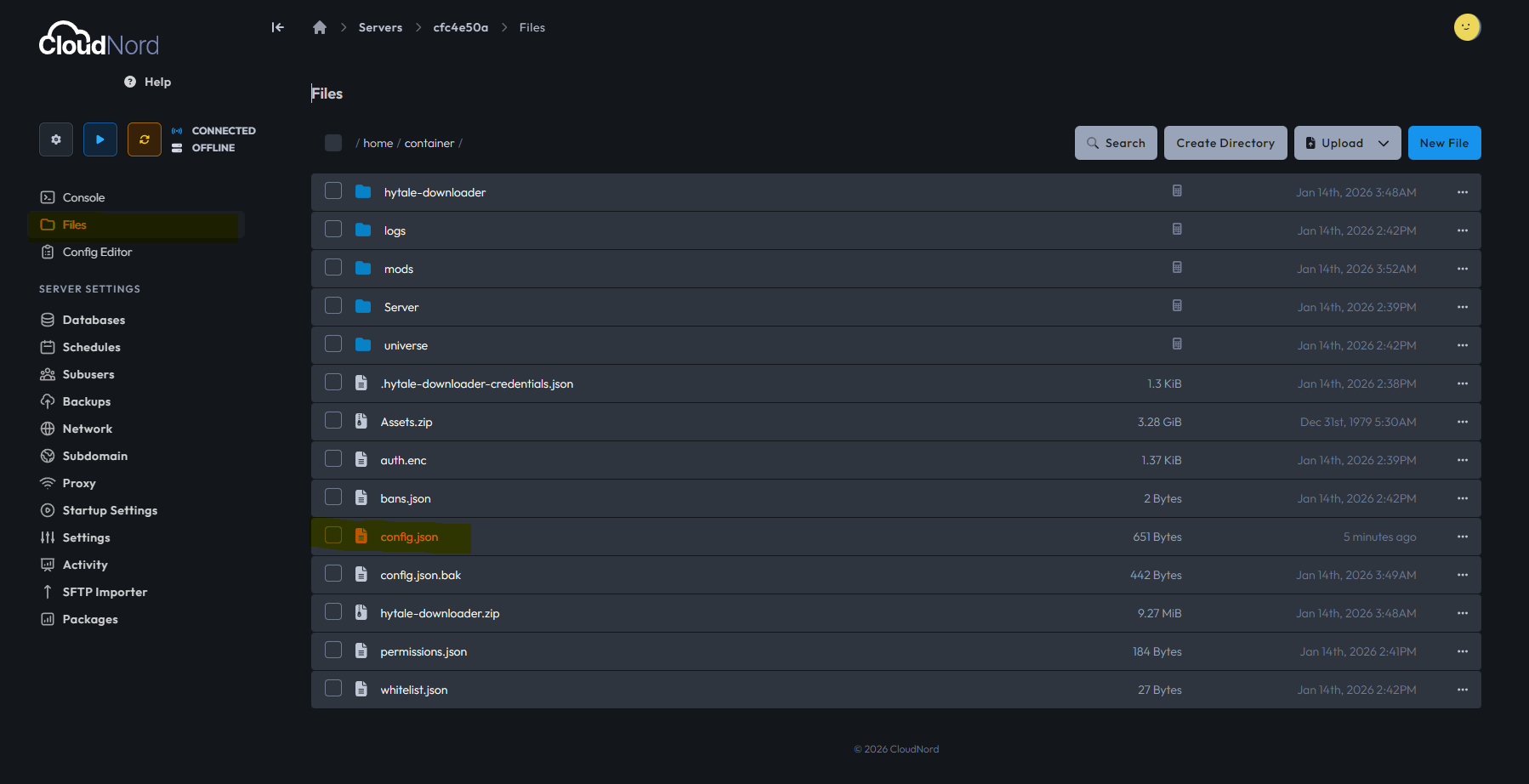
Server Information
| Setting | Description |
|---|---|
| Server Name | The name shown to players when they join your server. |
| Message of the Day (MOTD) | A short message displayed to players on connection. |
| Server Password | Optional password to restrict access. Leave empty for public servers. |
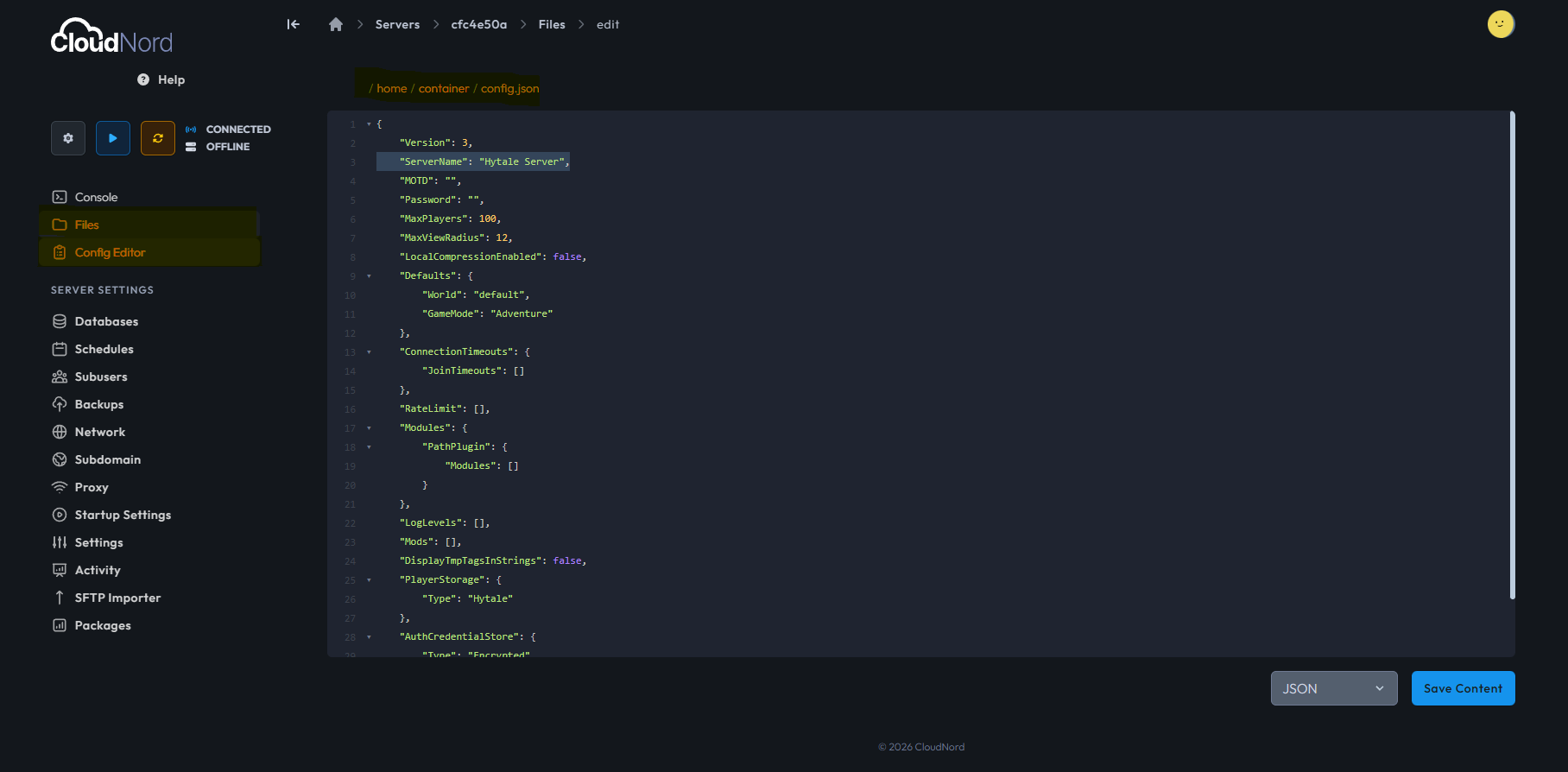
Performance & Network
| Setting | Description |
|---|---|
| Max View Radius | Controls how far players can see. Higher values may reduce performance. |
| Local Compression Enabled | Reduces network usage and improves connection stability. |
Gameplay Defaults
| Setting | Description |
|---|---|
| World | The world new players spawn into when joining for the first time. If the world does not exist, it will be created automatically. Returning players will spawn in their last visited world. |
| Game Mode | Determines player interaction mode (e.g., Adventure, Creative). |
Change Default Spawn World
To change the default starting world for all new players, run this command in the server console:
world setdefault <worldname>
2. Per-World Configuration
Each world in your Hytale universe has its own configuration file, allowing you to control behavior independently per world.
Where to Find World Config Files
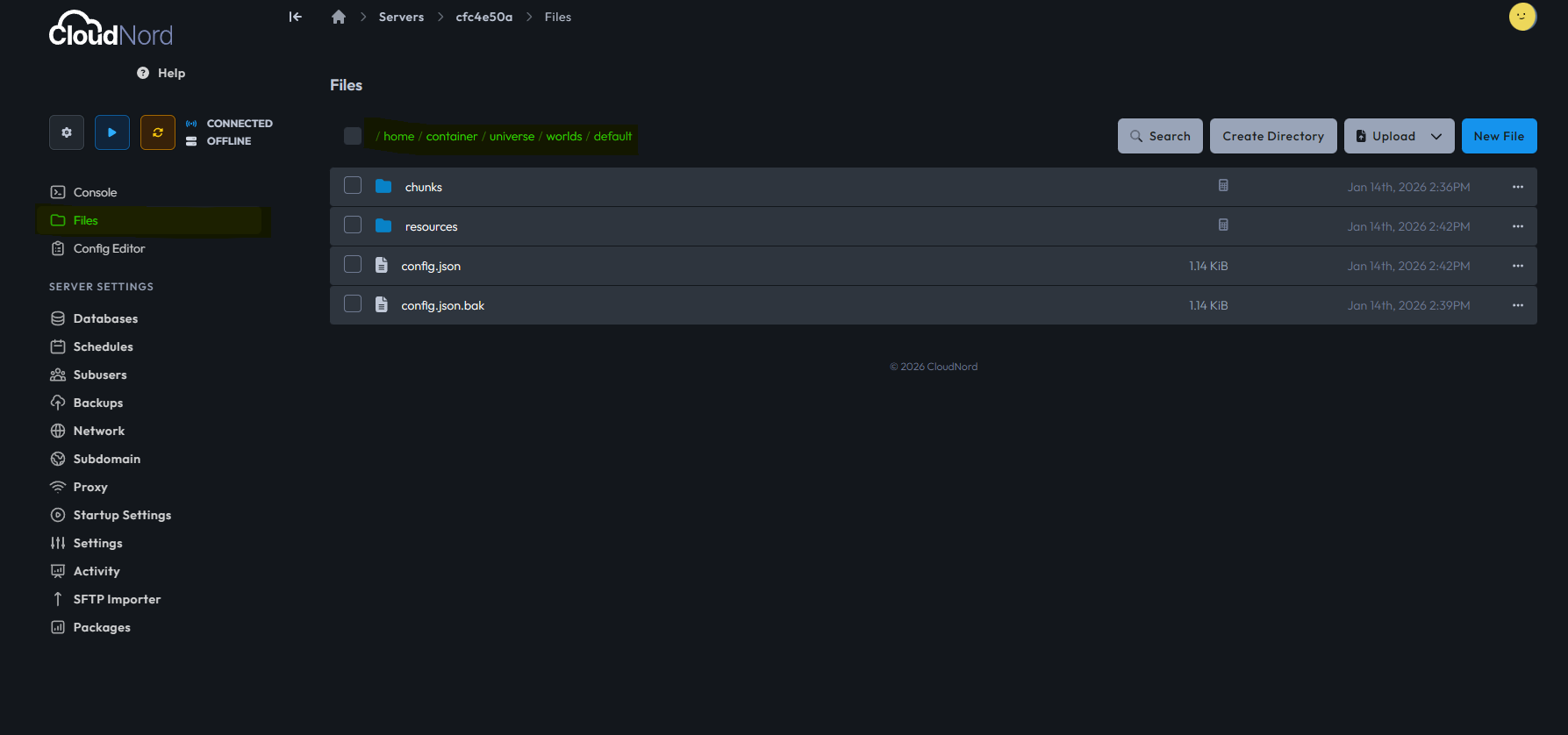
-
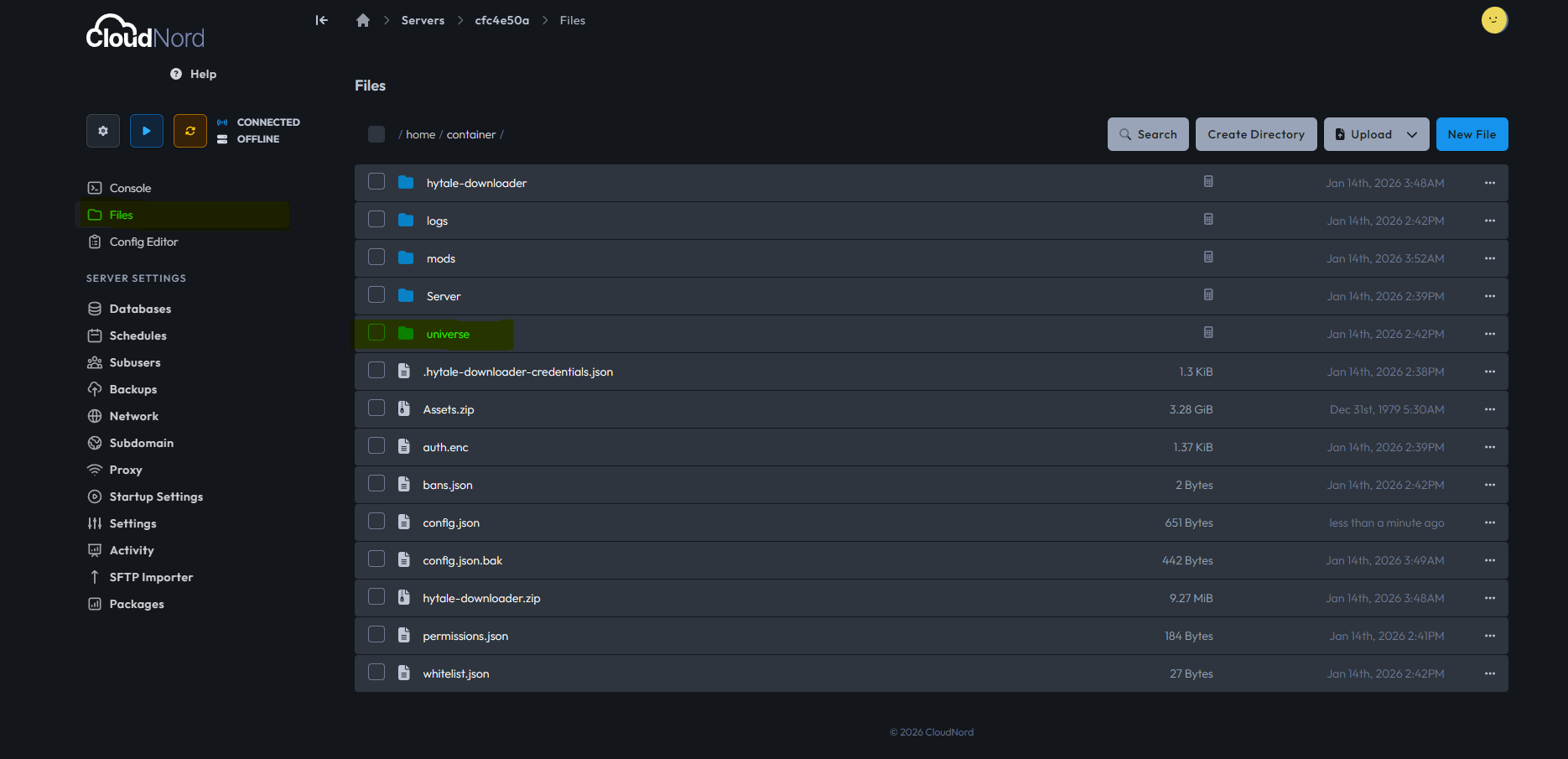
Open the Files tab in your CloudNord control panel
-
Navigate to:
universe/worlds/<world_name>/config.jsonExample:
universe/worlds/default/config.json
Common World Settings
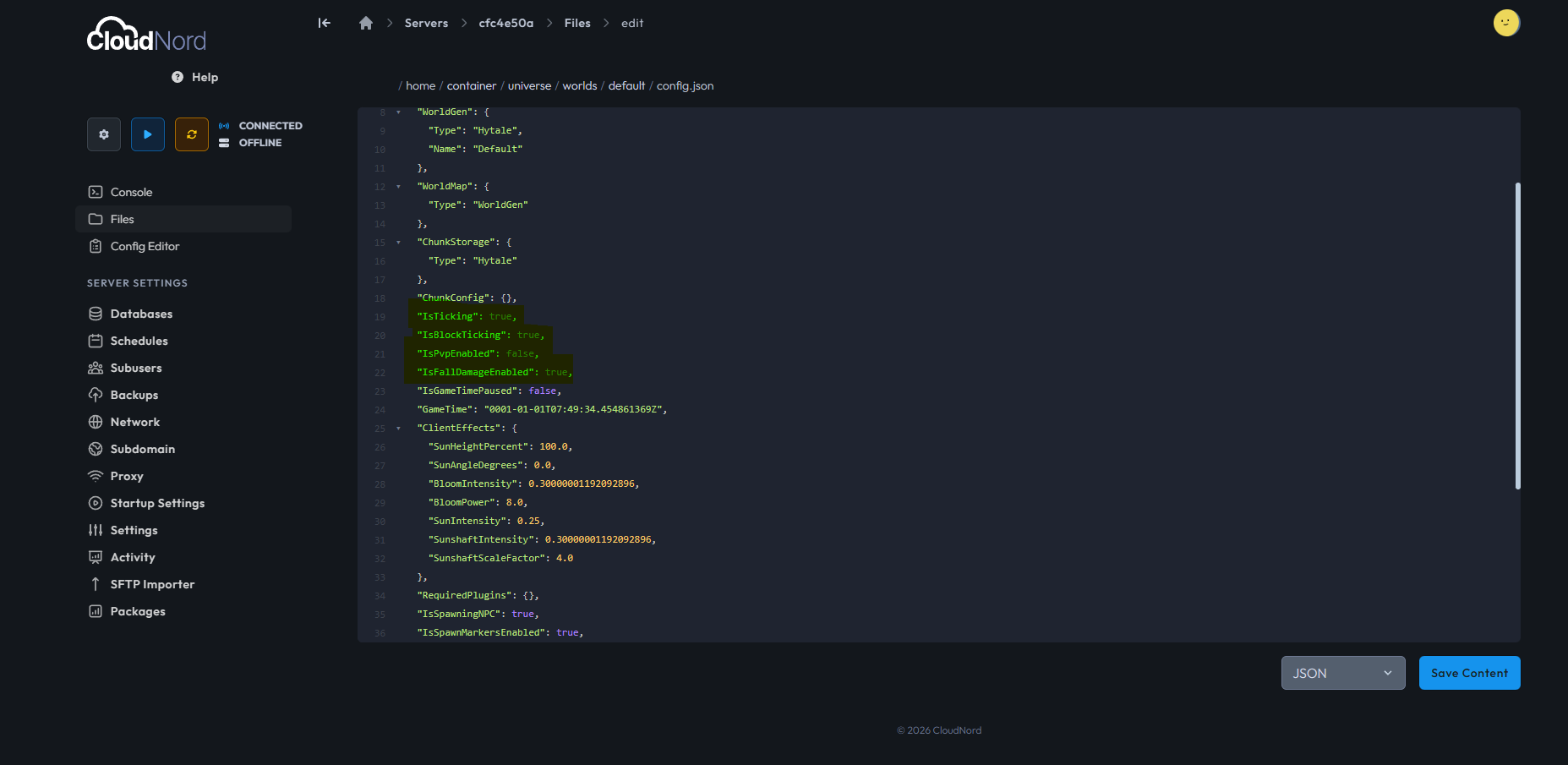
Inside the config.json file, you can customize how that specific world behaves.
Gameplay Rules
| Setting | Description |
|---|---|
| IsPvpEnabled | Enables or disables player-versus-player combat. |
| IsFallDamageEnabled | Enables or disables fall damage. |
| IsGameTimePaused | Pauses or allows time progression. |
| IsSpawningNPC | Enables or disables NPC spawning. |
World Behavior
| Setting | Description |
|---|---|
| Seed | Controls world generation randomness. |
| WorldGen | Defines the world generation type. |
| SaveNewChunks | Enables saving of newly generated chunks. |
| IsUnloadingChunks | Controls whether unused chunks unload to save resources. |
These settings apply only to the selected world and do not affect other worlds in the universe.
Performance Safety Notice (Max View Radius)
Hytale servers with Max View Radius set above 12 can consume excessive memory, which may lead to performance degradation, instability, or server crashes—especially under player load.
Many users are not aware that this setting exists or that it requires careful tuning. To prevent issues before they occur, CloudNord actively monitors this configuration
Need More Help?
If you can't find what you're looking for, our support team is here to help.