How to Update, Reinstall, or Downgrade a Terraria Server Version on CloudNord
This knowledge-base article explains the correct and safe procedure to update, reinstall, or downgrade a Terraria (Desktop/PC) server on CloudNord using official versions listed on the Terraria Desktop Version History page.
All steps below follow best practices to prevent file corruption, startup failures, and world incompatibility issues.
Overview
Terraria servers rely on exact version matching between server binaries, world data, and (if used) mods. Simply changing a version number without reinstalling can cause startup crashes or broken worlds.
CloudNord provides a controlled way to manage Terraria versions safely through Startup Settings and Server Reinstallation.
Official Terraria desktop versions are listed here:
https://terraria.wiki.gg/wiki/Desktop-version-history
Why Manage Terraria Server Versions?
Server administrators may need to change versions for several reasons:
-
Compatibility with specific worlds or mods
-
Avoiding breaking changes introduced in major updates
-
Running legacy community servers
-
Testing or staging environments
-
Ensuring client–server version parity
Proper version management ensures server stability and player connectivity.
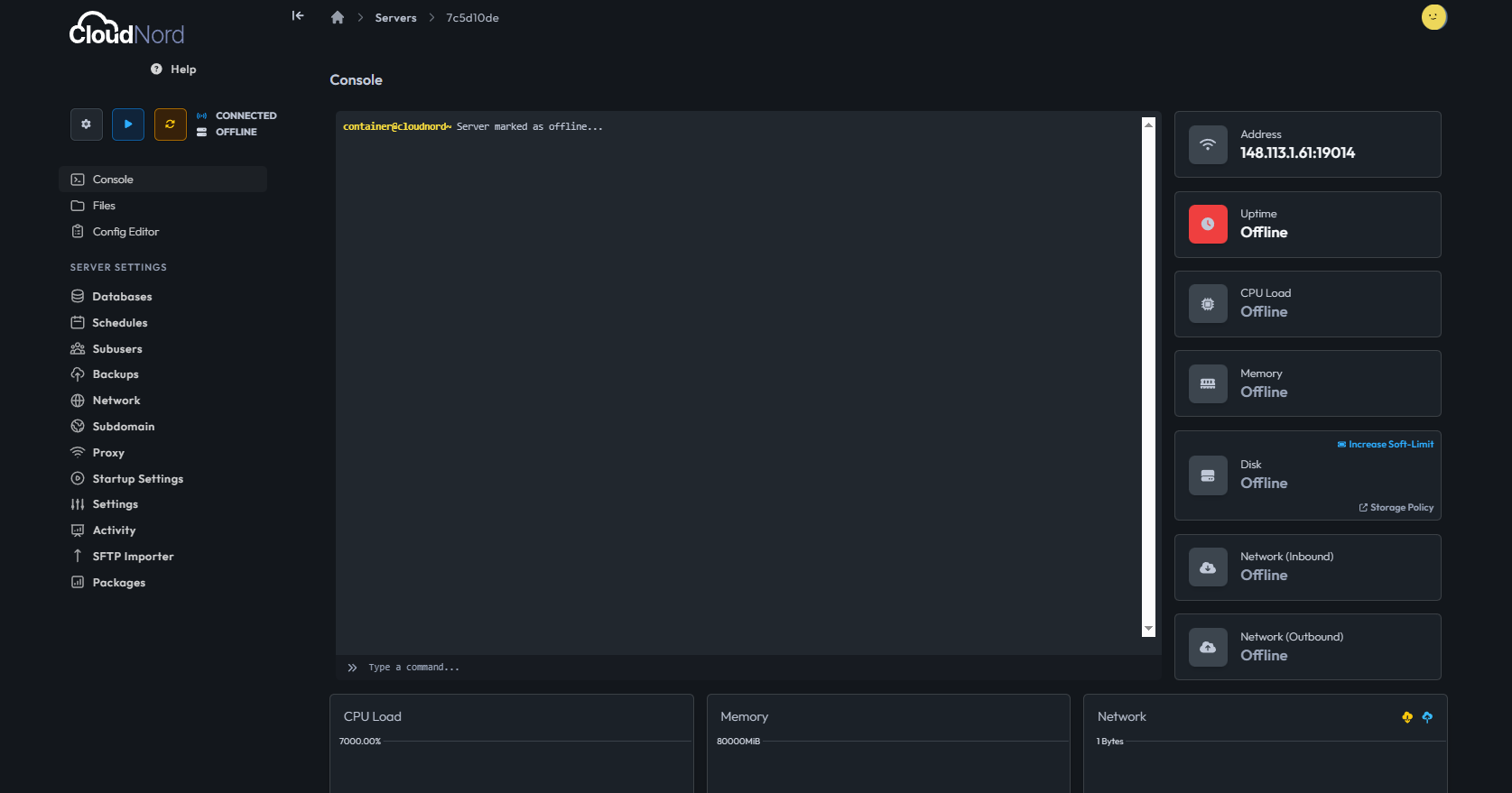
Step 1: Log In and Select Your Server
-
Log in to the CloudNord Dashboard
-
Navigate to Servers
-
Select your Terraria server instance
This opens the server management panel.
Step 2: Open Startup Settings
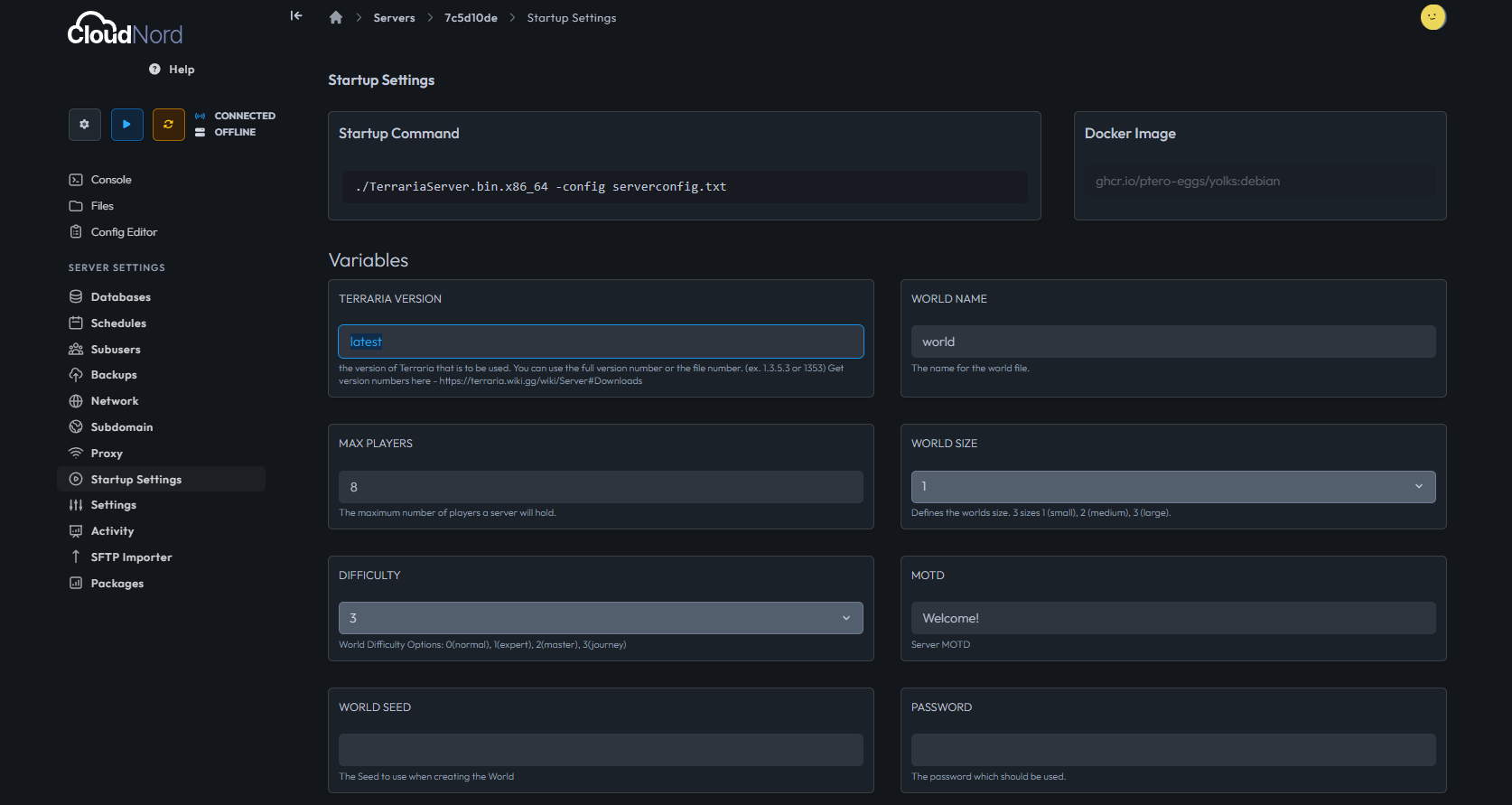
From the left sidebar, click Startup Settings.
This section controls all server startup variables, including the Terraria server version that will be installed and executed.
Step 3: Locate the TERRARIA VERSION Variable
Inside Startup Settings, locate the field labeled:
TERRARIA VERSION
Accepted Values
-
latest
→ Automatically installs the most recent official Terraria desktop release -
Specific version number
→ Example:1.4.4.9,1.4.3.6,1.3.5.3
The version format must exactly match an official release listed on:
https://terraria.wiki.gg/wiki/Desktop_version_history
Incorrect or unsupported version numbers will prevent the server from starting.
Step 4: Change the Server Version
-
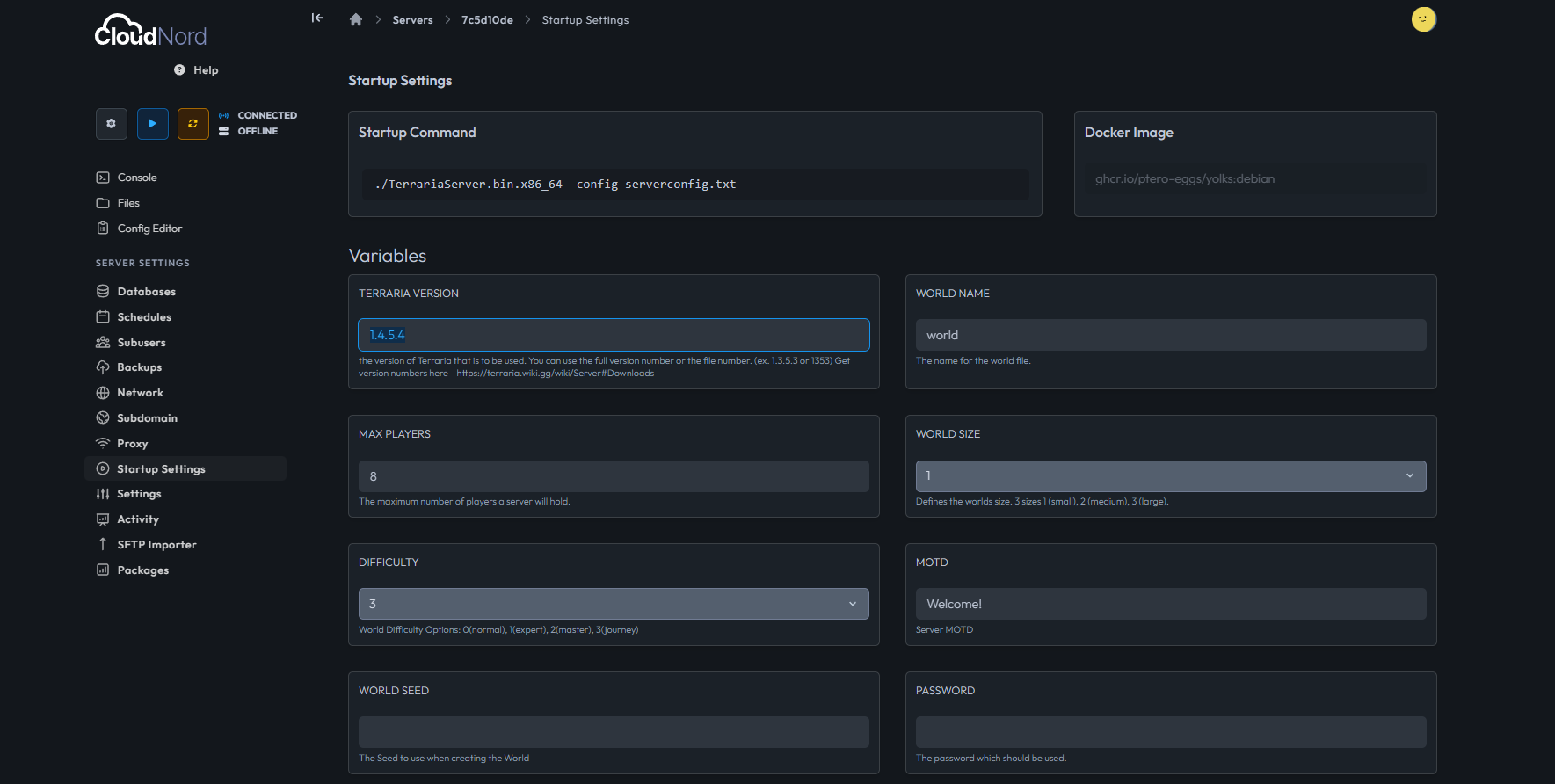
Click inside the TERRARIA VERSION field
-
Enter the desired version number
-
Ensure the format is correct (
X.Y.ZorX.Y.Z.W)
Changes to this field are saved automatically.
Step 5: Review Related Startup Settings (Optional)
Before reinstalling, review other important settings:
-
World Name – Identifies the server world
-
Difficulty – Classic, Expert, or Master
-
Max Players – Player slot limit
These settings do not change the server version but affect gameplay and stability.
Step 6: Reinstall the Server (Required)
Changing the version variable alone is not sufficient.
A full reinstall is mandatory for updates and downgrades.
-
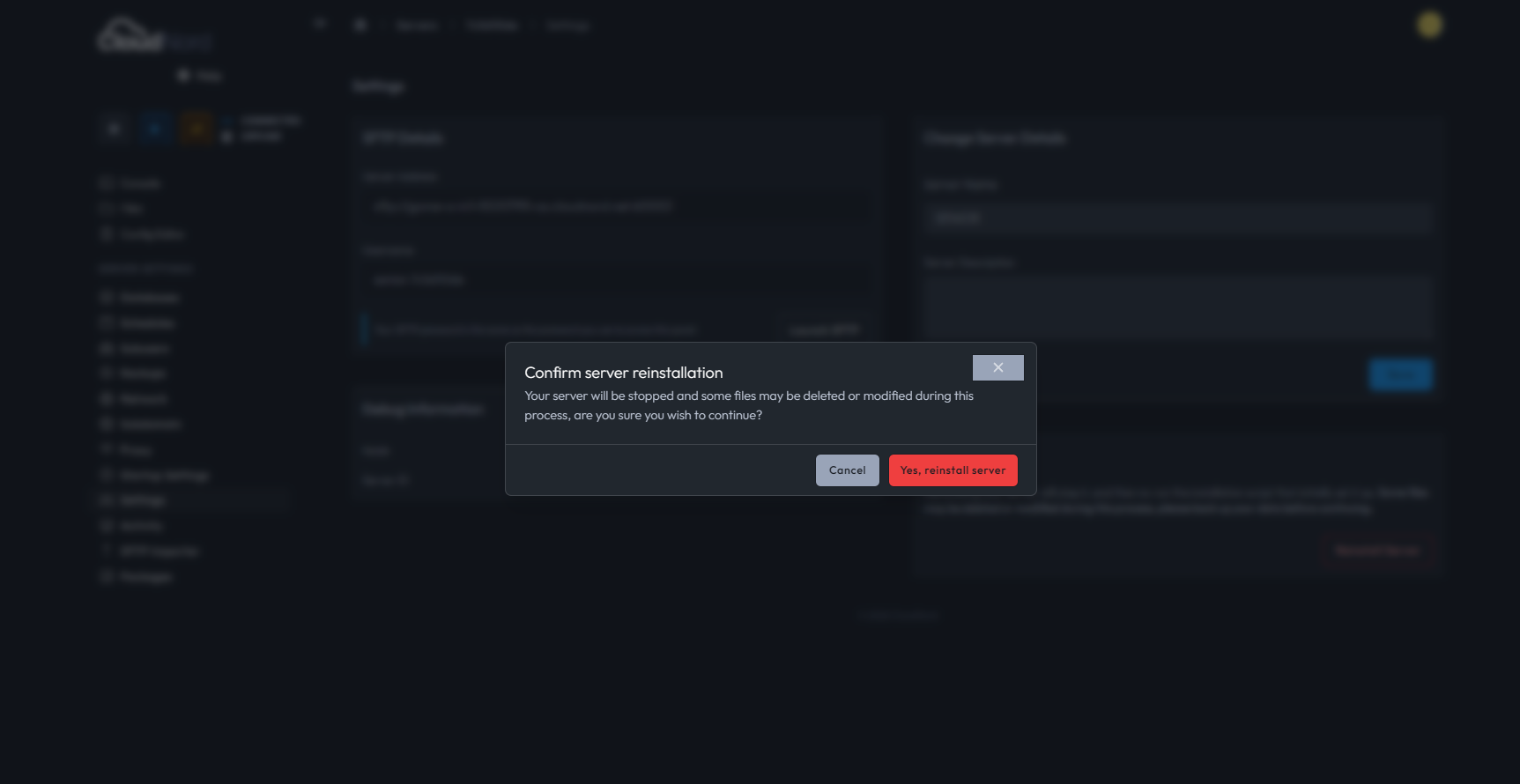
Open the Settings tab from the sidebar
-
Locate the Reinstall Server section
-
Click Reinstall Server
-
Confirm the warning prompt
Important Notes
-
The server will be stopped automatically
-
Server binaries will be re-downloaded based on the selected version
-
Some files may be overwritten or removed
Always back up your world files and configurations before reinstalling, especially when downgrading.
This step ensures the server files precisely match the selected Terraria version and prevents version conflicts.
Step 7: Start the Server and Verify Version
After reinstallation:
-
Start the server
-
Open the Console
-
Observe the startup logs
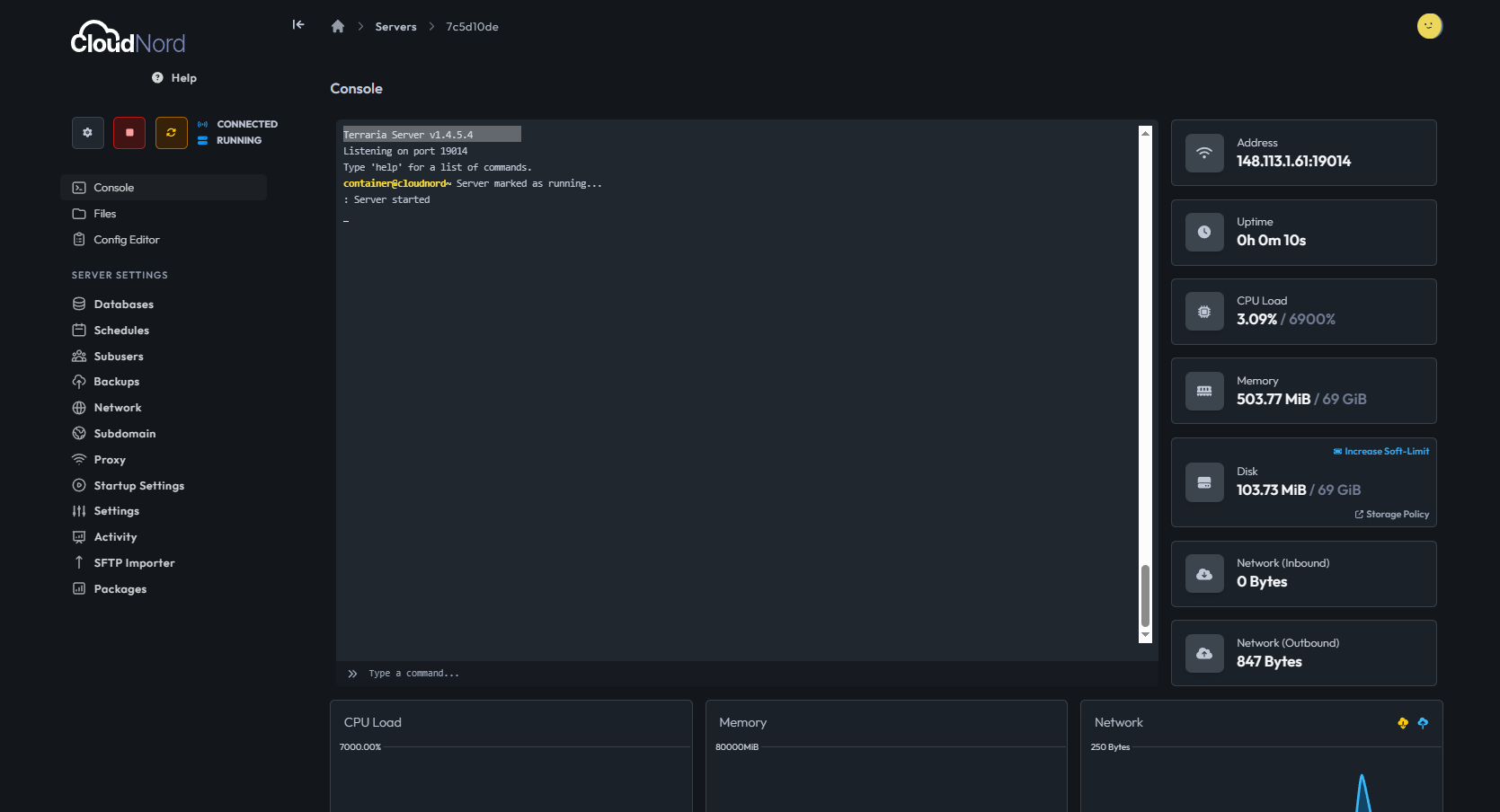
You should see output similar to:
Terraria Server v1.4.5.4
If the version displayed matches your selected value and no errors appear, the process is complete.
Step 8: Troubleshooting Common Issues
Server Fails to Start
-
Verify the version exists in the official desktop version list
-
Ensure there are no extra characters or spaces in the version field
World Errors After Downgrade
-
Worlds created in newer versions may not load in older versions
-
Consider restoring a backup or creating a new world
Mod or Plugin Issues
-
Mods must match the server version
-
Incompatible mods can cause crashes during startup
Major version downgrades often require a fresh world to avoid data corruption.
Best Practices
-
Always back up worlds before changing versions
-
Avoid skipping multiple major versions when downgrading
-
Use
latestonly when you are ready to update immediately -
Test version changes on a staging server when possible
Additional Support
If you encounter issues during version changes or need help selecting the correct Terraria version, CloudNord Support is available to assist. or you can't find what you're looking for, our support team is here to help.
Best regards,
- Senior